


So, you’ve correctly optimised your site for your chosen keywords, but are still wondering why you’re not seeing the rankings lift that you feel your business deserves? Well, it’s time to get technical up in here! Technical SEO is often the first place you should look once you’ve completed the on-ite fundamentals. And today I’m gonna talk about Google Search Console and how you can harness it to uncover key data you can directly use to improve your site performance!
Insights
The insights tab on Google Search Console is incredibly useful for getting a broad overview of some of the most important of your website stats!
From here, you can view your top pages that have been found by organic search traffic, as well as pages on your site that are either trending up or trending down, which gives you an early warning sign that something has impacted the performance of a page.
You can also see which keywords are trending up and down for bringing people to the site, which gives you a good idea of what direct action you can take to control any further damage.
Read More: Mastering Unique Content: The Only Strategy You Need For The New Google Algorithm
Performance
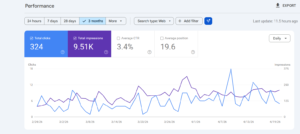
This is one of the most useful areas of GSC for both businesses and marketers! Here you can really et into the analytical data of the site, seeing a full list of which pages get the most impressions and clicks, which keywords your site gets the most traffic from and the page that this traffic takes them to & which country/city their site is being showed to. You can also find out whether the site is viewed more on mobile, tablet or desktop, and check which days and times the site has seen more popularity on. These are all incredibly useful analytical tools that give you data you can turn into real, actionable results, such as better mobile optimisation if the data from mobile devices is poor, and improving specific keywords.
You can also use the data here to compare your websites performance over time, giving you an overview of the trajectory of your sites Google Search performance over weeks, months, or even years.
Sitemaps
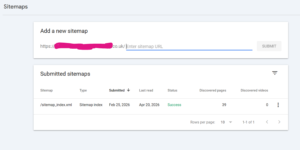
Uploading your sitemap to Google Search Console is an essential bit of technical SEO that will really help Google understand your website better & get you ranking quicker! All you need to do is find your site’s sitemap (if you have a WordPress site with a good SEO plugin such as Yoast, this should be generated automatically for you) – the URL is usually https://yourwebsite.co.uk/sitemap.xml – and submit it to Search Console. This can massively improve your site’s health just in and of itself!
Read More: Great B2B Marketing Isn’t the Risk in 2026, Playing Safe Is!
Indexing
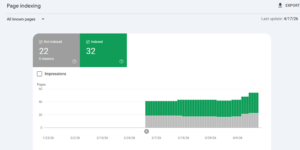
This is the real meat of where you’re gonna be able to see and diagnose problems with your site. This section (Indexing > Pages) is where Google gives you an overview of what pages are actually being indexed by Google, and which ones are not along with the reasons as to why that could be. Here are some of the reasons Google might not be indexing your pages, and brief look at what to do:
- Excluded by ‘noindex’ tag: This means somewhere either in your SEO plugin or the code of the site, you’re telling Google not to index this page. Most of the time when this comes up in my experience it tends to be pages we intentionally don’t want to be indexed such as back end pages, blog author pages & privacy policies etc. However it’s worth checking here to make sure there aren’t pages that you actually want to be findable that haven’t been accidentally selected to noindex!
- Not found (404): This means that Google is crawling a URL that is bringing through a 404 (this page does not exist) error. This can either be due to the way Google has chosen to crawl the site or because you deleted pages that used to exist without setting up a proper redirect. This can easily be fixed by installing a 301 redirect.
- Blocked due to access forbidden (403): This is usually because Google has crawled a pack end page, a theme or a plugin somehow. Unless this is a jarring issue with a page you want indexed you’re usually okay to ignore these, though you can tell Google not to index it via your robots.txt file.
- Page with redirect: This means the URL it has crawled redirects to another URL. It’s always best to check that this was done intentionally as too many unneccesary 301’s can cause you SEO issues if you’re not careful.
- Alternate page with proper canonical tag: This means that the page is a near duplicate of another page that you have told Google to index as the main page for that particular content. This is sometimes a useful way to get around being flagged for duplicate copy with large ecommerce sites selling multiple very similar products. As above, always best to check that any pages listed here have been assigned as such intentionally.
- Discovered – currently not indexed: This is where Google has seen the page and knows it exists, but hasn’t crawled it yet to decide where to rank it for which keywords (or if to index it at all). Often new pages can appear here if Google hasn’t had time to index them, and sometimes it is pages that Google has just decided are not a main site priority to index (orphaned pages with no internal links pointing towards them are often found here). Unless there are further SEO issues with your page (see below), you can just simply click on the URL in Search Console, go to “Inspect URL” and request indexing from Google, which should speed up the process.
- Crawled – currently not indexed: This means that Google has crawled the page, but decided not to index it. This normally means Google has some kind of problem with it. If it is a real page that you want indexing (if not, 301 it), then it could be down to several reasons:
- Too low word count
- “Generic” copy and obviously AI generated copy
- Duplicate or near duplicate pages or copy
- Duplicate metadata
- Weak internal linking – if not enough pages link to that page
- Weak trust signals/domain authority
- Slow loading speed due to heavy javascript content
By working out why your page isn’t being indexed, you can go directly to the source and fix the issues and improve your ranking positions!
Read More: Google Analytics 4: Understanding Your Data
Unlock the key by analysing the data
Learn how to use the data from Google Search Console correctly, and you can implement fixes that will work wonders for your site and help get your business seen online in an increasingly competitive landscape.
If you want to talk to a specialist who knows exactly how to translate the numbers you can see from Search Console into actionable results, book a free 1-2-1 consultation with Every Trick Marketing